How Nigerian Creators Can Add YouTube End Screens to Videos
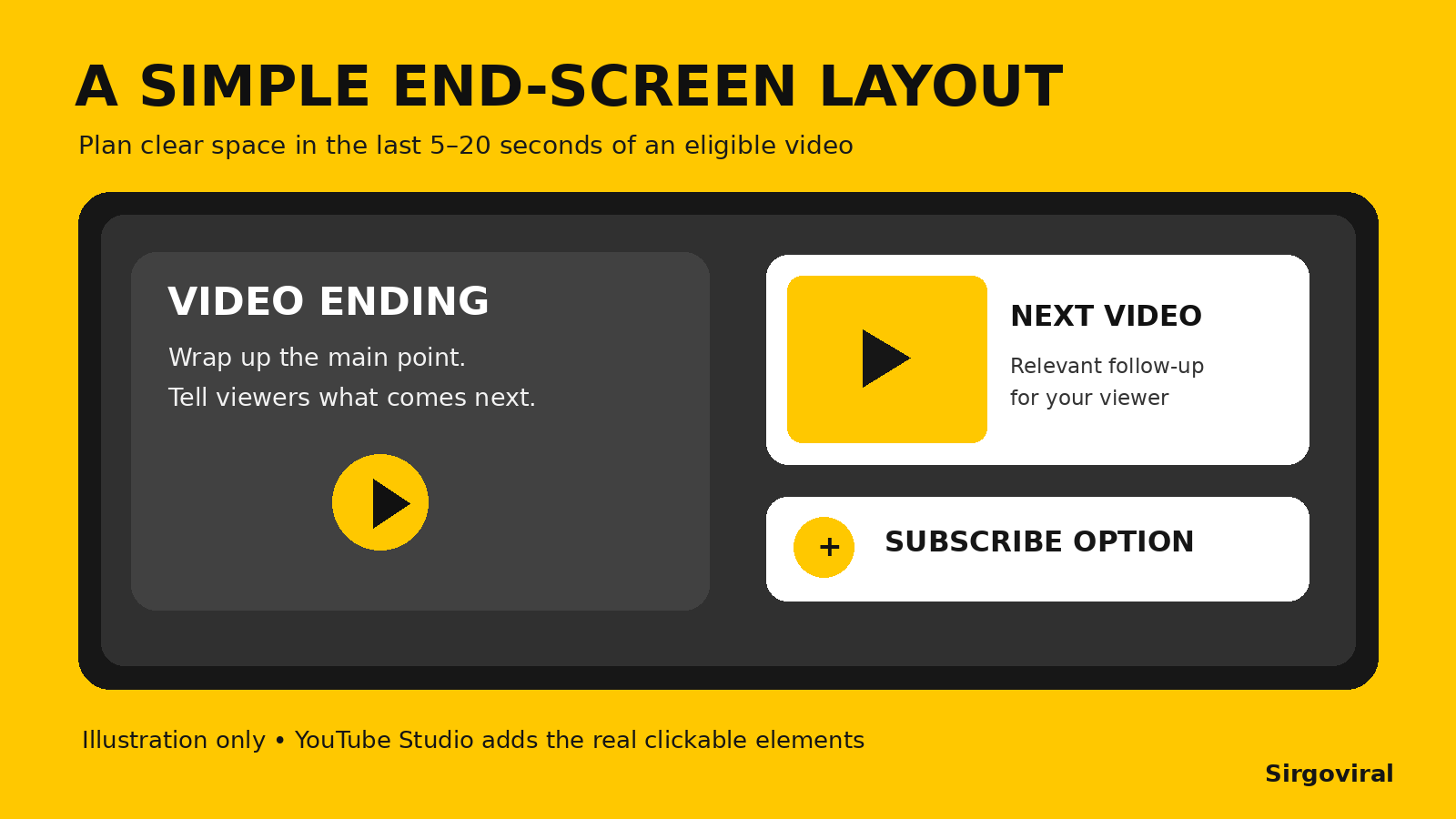
YouTube end screens are clickable elements that can appear during the final 5 to 20 seconds of an eligible video. Nigerian creators can use them to suggest another relevant video, feature a playlist or invite viewers to subscribe. To add one, open YouTube Studio, choose a video, select Editor, then End screen. Pick the elements, preview their positions and save. End screens offer a next step, but they do not guarantee clicks, views or subscribers.
What is a YouTube end screen?
An end screen is a set of interactive elements placed near the end of a video. Instead of finishing with a blank frame or an unrelated request, you can show viewers what to watch next. YouTube's official end screen guide describes options for videos, playlists, subscriptions, channels and eligible external links.
For example, a Nigerian phone-review creator could finish a battery comparison by linking to a related camera test. A cooking channel could point viewers from a jollof rice tutorial to a stew recipe. The suggested content should genuinely follow from the video the person has just watched.
Check the requirements before editing
YouTube currently requires a video to be at least 25 seconds long before it can have an end screen. The interactive elements appear within the last 5 to 20 seconds. For a standard 16:9 video, YouTube allows up to four end-screen elements; other aspect ratios can have lower limits. These are platform rules, not suggested targets.
End screens are unavailable on videos designated Made for Kids. They also do not appear in certain viewing environments, including most mobile web playback, the YouTube Music and YouTube Kids apps, and 360-degree videos. Viewers can hide end screens, and YouTube may display them differently according to device and context. Keep your video's audience setting accurate rather than changing it merely to access a feature.
How to add an end screen in YouTube Studio
- On a computer, sign in to YouTube Studio using the channel that owns the video.
- Open Content from the left-hand menu and select the video you want to update.
- Choose Editor, then select End screen.
- Apply a template or add individual elements, such as a video, playlist or Subscribe element.
- Drag the elements to suitable positions. Adjust their start and end times within the available final seconds.
- Use the preview to check whether the ending remains understandable, then select Save.
You can also add end screens during the video-upload workflow when the option is available. If the controls on your account look different, use the current YouTube Help instructions instead of relying on an old screenshot. A desktop browser is a practical starting point for the full Editor workflow.
Which end-screen element should you choose?
Start with the next action that makes sense for the viewer. More clickable boxes are not automatically better. The following combinations are editorial suggestions, not official YouTube performance benchmarks.
| Your video | Useful element | Why it fits |
|---|---|---|
| Part one of a tutorial | Next video in the series | Helps the viewer continue the same task. |
| Standalone product review | Related comparison video | Answers a likely follow-up question. |
| Several videos on one topic | Relevant playlist | Organises a connected set of lessons. |
| Channel introduction | Best starting video plus Subscribe | Offers a sample of the channel before asking for a commitment. |
| Collaboration | Other creator's channel, where suitable | Credits and directs interested viewers to the collaborator. |
For a simple first test, choose one relevant video and one Subscribe element. Watch the preview carefully: the video box should not cover the final information viewers need to read.
Plan the final 20 seconds before you upload
A common mistake is editing the video as though the last frame will be empty, then adding clickable elements over the speaker's face or subtitles. Instead, plan a clear finishing sequence while making the video. End screens are added in YouTube Studio, but the background footage is part of your video edit.
Here is an illustrative ending for a three-minute educational video. These times are a creative example, not a YouTube requirement:
- 2:40 to 2:48: complete the main lesson and summarise the one thing the viewer should remember.
- 2:48 to 2:55: introduce a genuinely related follow-up video, such as “Next, see how to record cleaner audio on your phone.”
- 2:55 to 3:00: leave a clean area in the frame where YouTube's video recommendation can appear.
Leave enough visual space for the actual clickable elements. If your ending uses a full-screen logo, keep it simple so the elements remain legible. Do not bake fake buttons or fake video thumbnails into your video; the clickable parts are supplied by YouTube.
End screens versus YouTube info cards
Both tools can point viewers to related content, but they work at different moments. End screens are designed for the closing seconds. Info cards can be placed earlier in the video when a reference becomes useful. YouTube's info-card instructions explain that cards can feature videos, playlists, channels and eligible links.
If a tutorial mentions an earlier lesson halfway through, a card may be the more natural choice. If the viewer has finished the current lesson and needs a next step, use an end screen. YouTube suppresses card teasers and video watermarks while the end screen is displayed, so do not expect every interactive prompt to appear together.
Can you link to an external website?
According to YouTube, external website links in end screens are available to creators in the YouTube Partner Program, subject to applicable rules. Do not assume every channel can add a website button. A creator who does not have the link option can still use eligible video, playlist, Subscribe or channel elements.
External links must follow YouTube's policies. Avoid misleading promises such as “click here for guaranteed subscribers” or destinations unrelated to the video. An end screen should make the viewer's next choice clearer, not trick them into leaving the platform.
How to check YouTube end screen click rate
After the video has received enough viewing activity to make a comparison useful, open YouTube Studio, select Content, choose the video and open Analytics. Under Engagement, look for the end-screen element click-rate report where available. YouTube also documents channel-level cards for top end-screen element types and top videos by end screen.
Do not judge a new layout from a handful of views. Compare similar videos and ask practical questions: Was the suggested video actually related? Did the spoken recommendation match the clickable box? Was the end screen covering important subtitles? You can test a simpler layout on a future upload and compare the response. Click rate is one signal, not proof that the end screen caused channel growth.
Why is your YouTube end screen not showing?
Use this troubleshooting order before assuming the feature is broken:
- Check video length. Videos shorter than 25 seconds cannot use end screens.
- Check audience settings. End screens do not appear on videos correctly designated Made for Kids.
- Check the playback environment. Some apps and mobile web playback do not show end screens.
- Check the saved edit. Reopen Studio Editor and confirm the elements and timing were saved.
- Check viewer controls. YouTube lets viewers hide end screens on a video.
- Check the preview and a supported device. Elements can appear differently depending on context.
In September 2025, YouTube announced a Hide control for end screens, allowing viewers to dismiss them on the video they are watching. This is a viewer choice, not necessarily an error with your upload. Read the official product update for background.
Common mistakes that make end screens less useful
- Recommending an unrelated video: the viewer may not see why it follows the topic.
- Covering important text: place subtitles and final instructions away from interactive boxes.
- Adding too many elements: give viewers one obvious next step before testing busier layouts.
- Ending without a verbal cue: a short explanation can tell viewers why the next video matters.
- Using an outdated playlist: check that the destination is still appropriate and accessible.
- Expecting guaranteed results: an end screen is a navigation tool, not a view or subscription guarantee.
How this fits into a responsible promotion plan
End screens are an organic YouTube feature. They help people who are already watching decide what to view next. Paid social media promotion is a separate activity and cannot replace a useful video or an authentic audience relationship. YouTube's fake engagement policy prohibits artificially inflated views, likes and subscriptions, including certain third-party promotion methods.
If you are comparing social media marketing options for other parts of your business, the Sirgoviral service catalogue lists current categories and requirements. Review each service description and the rules of the relevant platform before deciding whether it is appropriate. You can also create a Sirgoviral account to explore the dashboard. Neither paid promotion nor end screens guarantee views, recommendations or sales.
Frequently asked questions
How long must a video be to add an end screen?
YouTube currently requires at least 25 seconds. The end screen itself can appear within the final 5 to 20 seconds of an eligible video.
Can I add an end screen to a video that is already published?
Yes. Open that video in YouTube Studio's Editor, add or adjust the elements, preview them and save.
How many end-screen elements can I use?
For a standard 16:9 video, YouTube allows up to four elements. Other aspect ratios may have a lower limit. Start with fewer if that gives viewers a clearer choice.
Can I add a website link to my end screen?
External website links are restricted to eligible YouTube Partner Program creators and must comply with YouTube's policies.
Do end screens automatically increase watch time?
No. They provide an option to continue watching, but a viewer must choose to click and watch. Review the end-screen reports in YouTube Studio rather than assuming an automatic benefit.