
How to Use WhatsApp Business Quick Replies for Online Sales in Nigeria
WhatsApp Business quick replies help Nigerian online sellers answer repeated customer questions without typing the same message every time. Save a response for pricing, delivery, available sizes or order updates, assign it a short shortcut, and insert it when a customer asks. Review and personalise the message before sending, especially when prices, stock or delivery details change. Quick replies are reusable drafts, not a promise of automatic replies or extra sales.
What are WhatsApp Business quick replies?
Quick replies are saved messages inside the WhatsApp Business app. You can retrieve one with a shortcut while chatting, edit it and send it to the customer. WhatsApp's official Business app feature guide describes them as shortcuts for answers you send frequently. This makes them useful for sellers who repeatedly receive questions such as “How much?”, “Do you deliver to Ibadan?” and “Is medium still available?”
They are different from greeting messages and away messages. A greeting can welcome a new contact automatically; an away message can tell people when you are unavailable. A quick reply normally requires you to select and send the saved response during a conversation. It does not independently read a question and decide the correct answer.
Step 1: List the questions customers actually ask
Before setting up shortcuts, read a sample of your recent customer conversations. Do not copy private customer information into a shared document. Identify questions that repeat and whose answers can be drafted without guessing.
For a Nigerian fashion seller, useful categories might be prices, sizes, delivery locations, ordering steps and exchange conditions. For a phone-accessories seller, the common questions may be device compatibility, stock, collection and warranty terms. Start with four or five replies you know you will use; add more only when a real need appears.
Separate stable information from details that change. Business hours may remain the same for weeks. Stock, price, dispatch dates and delivery fees may change daily. Saved text for changing details should contain a prompt to verify the current facts, not an outdated figure.
Step 2: Create your first quick reply
- Open the WhatsApp Business app on the phone linked to your business account.
- Find Business tools, Tools or the equivalent menu, then open Quick replies. The location can differ between Android, iPhone and app versions.
- Select the option to add a quick reply.
- Write the saved message in plain language. Include placeholders for anything that must be checked before sending.
- Choose a memorable shortcut, such as
/priceor/delivery, then save it.
For current device-specific instructions, consult the WhatsApp Help Center quick-replies guide. The guide describes the slash shortcut method and notes a limit of 50 saved quick replies. Treat the number as a current product limit that may change.
Step 3: Use a shortcut in a customer conversation
Open the relevant chat and type / in the message field. Choose the quick reply you need from the available list. The saved message appears in the composer, where you can edit it before sending. On supported mobile interfaces, you may also find quick replies through the attachment menu.
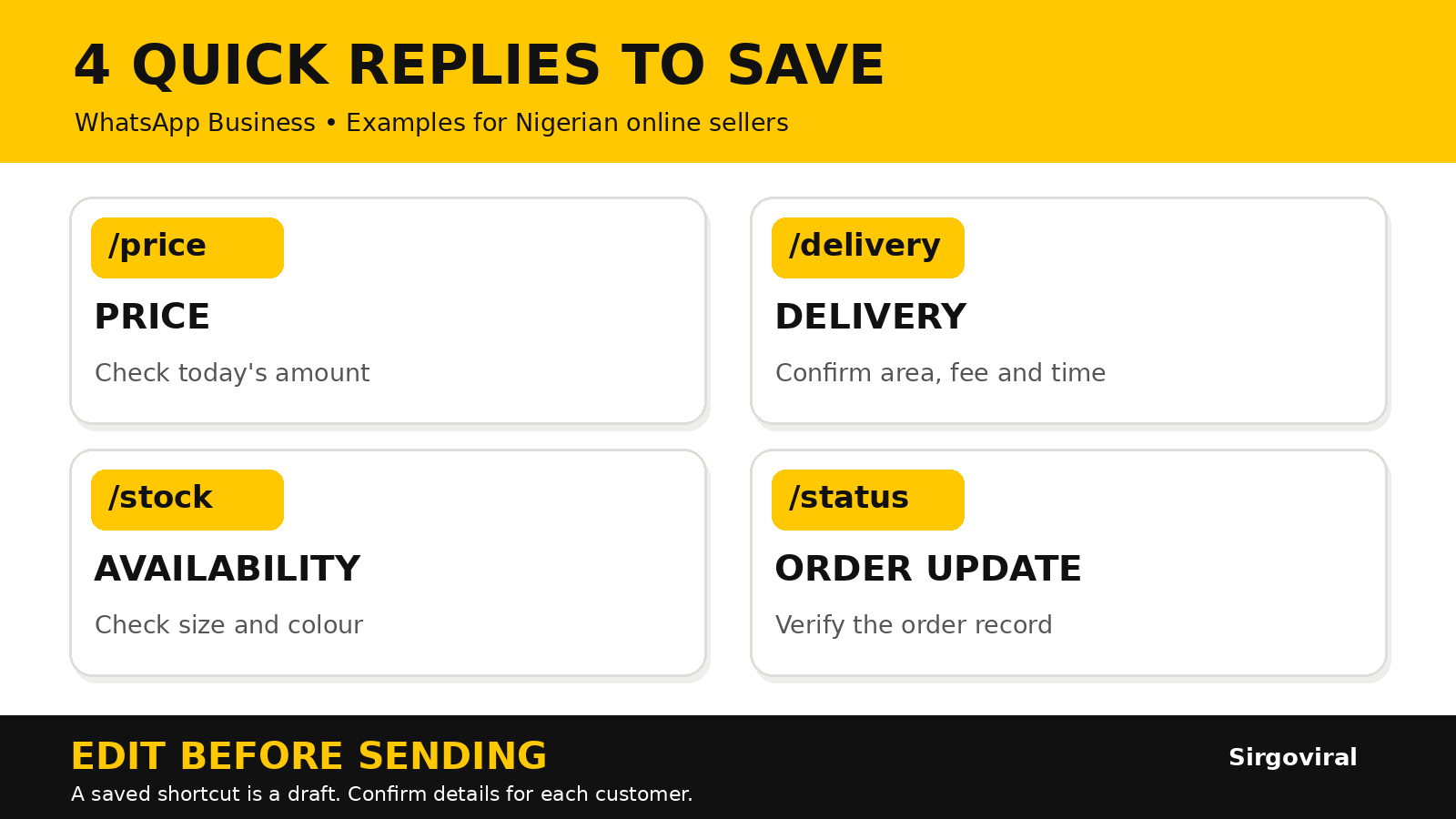
For example, a customer asks whether a dress is available in size 12. Select /stock, confirm the actual size and colour in your records, then replace the placeholders. If the item is unavailable, do not send a stock-confirmation message just because it is saved.
WhatsApp's Help Center says media may be supported in saved quick replies on mobile, but media quick replies are not supported on Web or Desktop. If you work across devices, test the text-only workflow first and check the current app behaviour.
Step 4: Save replies that sound human
A useful saved message has three parts: a friendly opening, one accurate answer and one clear next step. Avoid a long sales pitch when someone asks a simple question. These templates are examples only. Replace every bracketed field and check the facts before sending.
| Shortcut | Editable reply template | Check before sending |
|---|---|---|
/price | “Hello! The current price for [item] is ₦[amount]. It includes [what is included]. Would you like the available colours?” | Current price and product details |
/stock | “Thanks for asking. I will confirm whether [item] is available in [size/colour] and update you shortly.” | Stock and requested variation |
/delivery | “We can check delivery to [destination]. Please share your area so I can confirm the available option, fee and estimated timing.” | Actual coverage, fee and timing |
/order | “To prepare your order, please confirm [item], [quantity] and [size/colour]. I will then send the current total and the next step.” | Items, quantity and fulfilment terms |
/status | “Thanks for following up. I am checking the status of order [reference] and will share a verified update.” | Correct customer and order record |
Notice that the stock and delivery examples do not promise availability or a dispatch time. That is intentional. When a fact has not been verified, a useful reply acknowledges the question and explains what you will check.
Step 5: Match quick replies to each stage of an order
Not every conversation is at the same stage. A new visitor asking about price needs a different answer from a customer who has already paid. Use a simple sequence: new enquiry → product clarification → order confirmation → fulfilment update → after-sales support.
If your WhatsApp Business account offers Lists or Labels, use them to organise conversations so you know which reply is appropriate. The official WhatsApp Business guide to Lists and quick replies recommends pairing saved answers with the customer's current stage. For instance, a new enquiry may need product details, while an existing order needs a verified update.
Keep sensitive order information inside the correct conversation. Check the recipient and reference before sharing addresses, payment details or purchase records. Never request passwords or one-time security codes through a quick-reply template.
Step 6: Review saved replies when business details change
A quick reply saves typing only when the information is trustworthy. Review your saved messages whenever you change prices, delivery partners, business hours, return conditions or product ranges. Remove shortcuts that no longer match how you operate.
Give the most frequently used shortcuts short, recognisable names. If two shortcuts have similar names, rename one so you do not choose the wrong answer under pressure. Keep a separate copy of important templates; WhatsApp's help documentation warns that deleted quick replies cannot be recovered from the quick-replies screen.
For a small team, agree on who maintains shared wording. A staff member should still confirm live facts before replying, even if the message was approved last week.
Common mistakes Nigerian sellers should avoid
- Sending without editing: bracketed placeholders make the reply look unfinished and can confuse a customer.
- Quoting an old price: verify the current amount and what it includes before sending.
- Promising nationwide delivery: mention only locations and methods you can actually support.
- Using a generic reply for every question: answer the specific issue raised in the chat.
- Confusing quick replies with automation: a saved shortcut does not automatically handle a conversation.
- Ignoring privacy: never send one customer's order or personal details to another.
- Leaving unanswered follow-ups: a quick acknowledgement is not a substitute for the promised update.
A practical 15-minute setup plan
Spend five minutes reviewing repeated questions, five minutes drafting four short responses, and five minutes testing them in a suitable conversation. These time blocks are planning suggestions, not measured productivity claims. Check that each shortcut inserts the intended text, the placeholders are obvious, and the next step is clear.
After several days, note which saved answers you used, which required substantial rewriting and which customer questions still lack a useful template. Improve the wording based on real enquiries rather than collecting dozens of shortcuts you rarely need.
Where Sirgoviral fits into a wider marketing workflow
Clear customer replies are part of customer service, not a paid engagement product. They can make it easier to handle genuine enquiries that arrive from your organic content or other marketing activities. They do not guarantee purchases.
If you separately want to research social media promotion, you can review the publicly listed options in the Sirgoviral service catalogue and check the exact description, requirements and platform rules before deciding whether a service fits your goal. New users can visit the Sirgoviral sign-up page. Paid engagement is distinct from authentic customer conversations and does not guarantee reach, sales or recommendations.
Frequently asked questions
Are WhatsApp Business quick replies automatic?
No. Quick replies are saved responses that you choose and send in a chat. Greeting and away messages are separate tools that can send automatically when configured.
How do I open a saved quick reply?
In a supported WhatsApp Business chat, type / in the message field and choose a saved reply. You can then edit the text before sending. Menu options may vary by device.
How many quick replies can I save?
The WhatsApp Help Center currently states a maximum of 50 saved quick replies. Check the official help guide if your app shows a different limit.
Why are my quick replies not showing?
Check that you are using the WhatsApp Business app and the correct account, that the shortcut was saved, and that you are opening it in a supported chat. Update the app and consult the current Help Center if the menu has moved.
Can I use quick replies to confirm a payment?
You can save a message acknowledging that you are checking a payment, but confirm the transaction through your actual records before telling the customer it has been received.