How to Organise WhatsApp Business Chats with Lists in Nigeria
To organise WhatsApp Business customer chats with Lists in Nigeria, open the Chats tab, swipe down to reveal your filters, select the plus sign and create a list such as “New enquiry” or “Order in progress”. Add the relevant conversations, then update the lists as customers move through your order process. Lists help you find and prioritise chats. They do not automatically send messages, verify payments or guarantee sales.
What are WhatsApp Business Lists?
Lists are custom chat filters that group conversations by a category you choose. For an online seller, the category might describe what the customer needs next rather than the product they asked about. For example, “Awaiting details” could contain customers who have not yet confirmed their preferred size or delivery area.
WhatsApp's official explanation of Lists describes default filters including All, Unread, Favourites and Groups, plus custom lists. Its step-by-step help page explains how to create, edit and delete a list. The WhatsApp Business resource library recommends using Lists to organise enquiries, payments, dispatch and support.
Lists are not the same as quick replies, labels or broadcasts
A List helps you filter chats. A quick reply is a saved message that you choose and send when answering a customer. A broadcast is a separate messaging feature with its own availability and rules. Older WhatsApp Business accounts may also show Labels for organising conversations. Do not assume that moving a chat into a list will notify the customer, change an order's status elsewhere or send any marketing message.
This distinction matters when an Instagram or Facebook post brings several people into your WhatsApp inbox. A list can help you identify conversations needing action, but you still need to reply accurately and confirm each customer's order details.
Step 1: Create your first WhatsApp Business List
- Open WhatsApp Business on your phone and go to Chats.
- Swipe down to reveal the chat filters. Look for a + option, which may require scrolling across the list row.
- Enter a short, specific name such as New enquiry.
- Choose Add people or groups and select at least one relevant conversation.
- Confirm the selection and check that the list appears among your chat filters.
On some Android layouts, WhatsApp also documents an alternative route through Settings > Lists > New list. Menu labels and placement can change, so follow the controls available on your current app. WhatsApp's help guidance says a new list needs at least one chat.
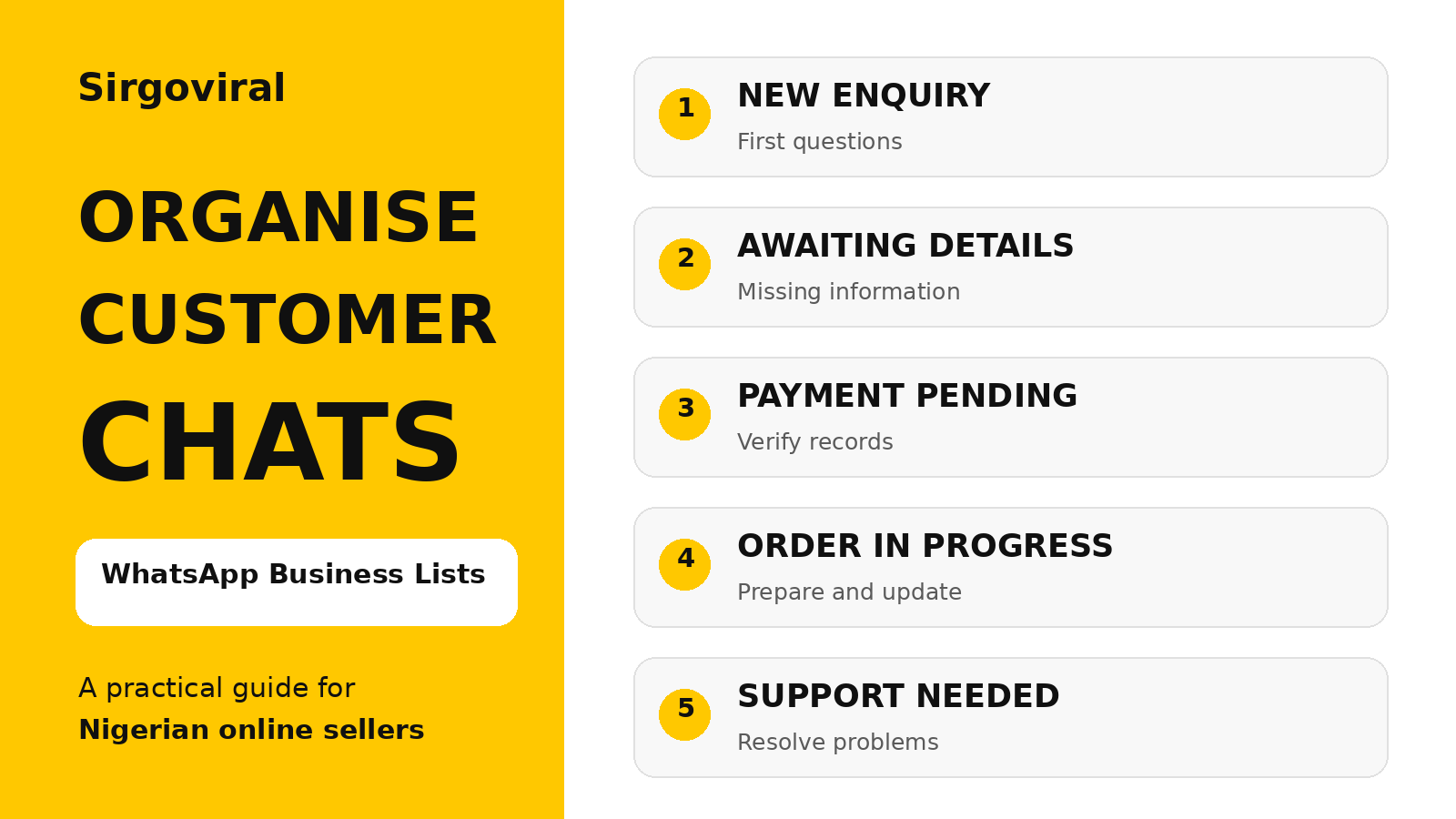
Step 2: Start with five practical customer lists
Do not create a separate list for every small task. A simple system is easier to maintain, especially if you manage orders yourself. These suggested names describe actions, not claims about a customer's willingness to buy.
| List name | Who belongs here? | Your next action |
|---|---|---|
| New enquiry | People asking their first question about a product. | Answer the question and ask what detail they need. |
| Awaiting details | Customers who have not confirmed size, colour or delivery area. | Request the missing information without pressuring them. |
| Payment pending | People who requested payment instructions but whose payment is not yet confirmed. | Check the correct transaction records before marking an order as paid. |
| Order in progress | Customers whose order you have accepted and are preparing. | Provide accurate updates based on the actual order status. |
| Support needed | Customers reporting a delivery, product or order problem. | Review the issue and explain the next resolution step. |
For a fashion seller in Lagos, the “Awaiting details” list may include a customer who asked about a dress but has not selected a size. A food seller might use it for someone who has not confirmed their pickup time. The names are examples, so adapt them to your own order process.
Step 3: Add, remove and edit conversations
WhatsApp's official Android instructions describe pressing and holding a chat, opening the menu and choosing Add to list. Select the relevant list and confirm. To edit a list, open Chats, reveal the filters, press and hold the list, then choose Edit where that control appears. You can rename the list or adjust its included chats.
Review the list when a customer's situation changes. For instance, do not leave a verified, accepted order in “Payment pending” merely because the conversation started there. Equally, do not move someone to “Order in progress” based only on an unverified payment screenshot. Your payment confirmation process should remain separate from chat organisation.
Step 4: Build a simple daily follow-up routine
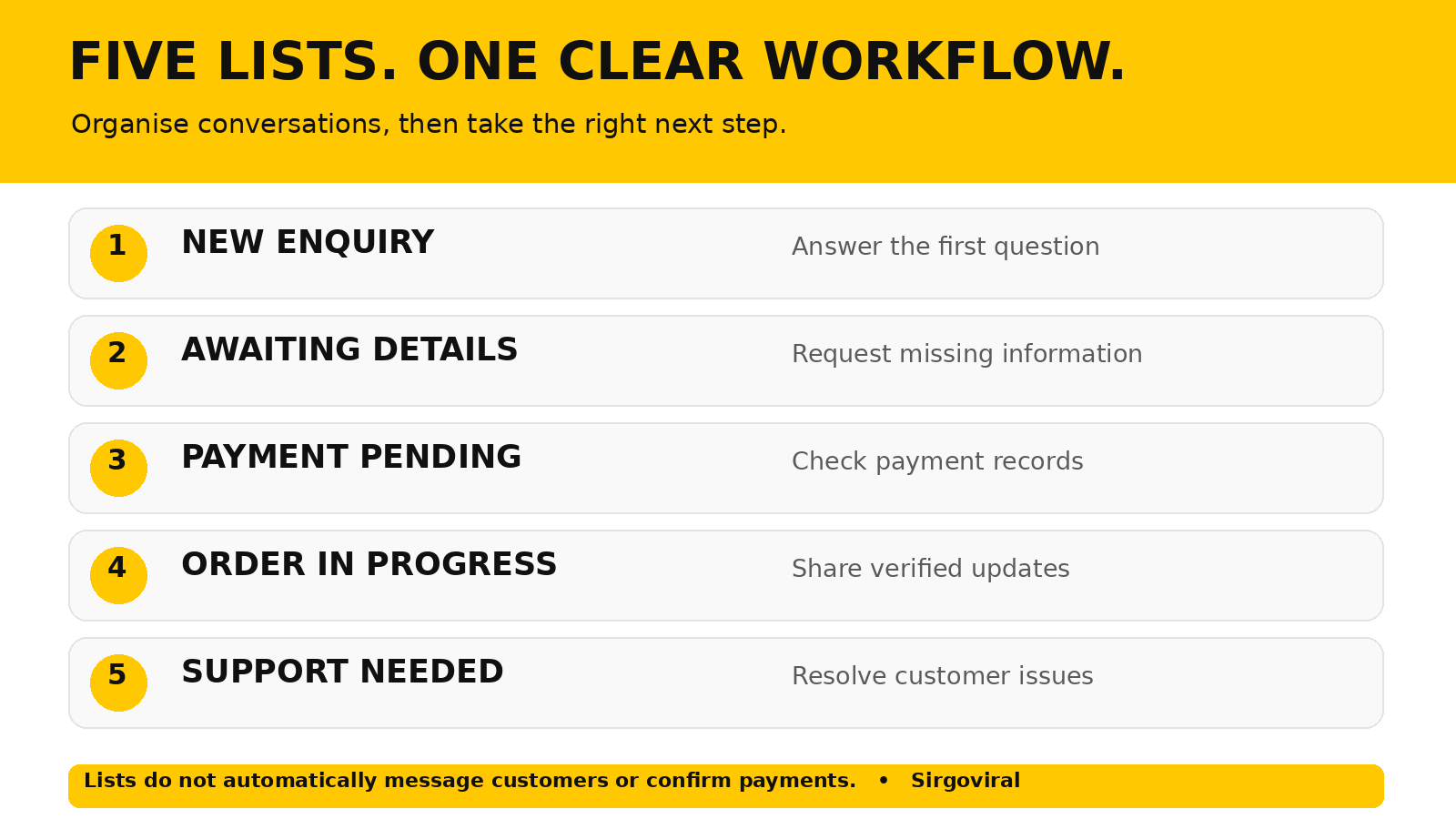
At the beginning of your working day, open New enquiry and Support needed to identify unanswered questions or urgent issues. During order processing, check Awaiting details and Payment pending for conversations that need verification. Before closing, review Order in progress and send only updates that you can substantiate.
This is a suggested workflow, not an official WhatsApp schedule. A seller with a handful of chats may need only one review, while a busier shop may check more often. The aim is to avoid losing an important conversation in a crowded inbox, not to promise instant replies.
Step 5: Use lists without sending unwanted messages
Organising an existing conversation does not give you permission to send repeated promotional messages. Reply to the customer's actual request, respect requests to stop contact and avoid adding people to marketing campaigns without appropriate permission. Keep sensitive customer information out of shared screenshots and public posts.
For an order update, state what is known: “Your order is being prepared. We will confirm the dispatch details when available.” Do not invent a delivery date or tell someone a payment is successful before checking your records. If you use a quick reply for a common question, personalise it before sending and check that the saved details are still correct.
Step 6: Fix missing or confusing Lists
- Can't see the filters? Open Chats and swipe down; the row may be collapsed.
- Can't find the plus sign? Move across the filter row, or check the Lists option in Settings where available.
- New list won't save? Confirm that you selected at least one chat, as WhatsApp requires for creation.
- Wrong chats appear? Open the list's edit controls and check its members.
- Interface differs from a tutorial? Update the app through its official store and consult WhatsApp's current Help Centre.
Do not delete chats or reinstall the app as a first troubleshooting step. If you need to remove a list, use the list's Delete option. Deleting an organisational filter should not be confused with deleting the underlying conversations; check the confirmation screen carefully.
Common mistakes Nigerian online sellers should avoid
- Too many categories: if you cannot remember where a conversation belongs, simplify the system.
- Vague names: “Important” is less useful than “Awaiting details”.
- Using lists as proof of payment: verify payments in your actual payment records.
- Forgetting support cases: a complaint should not disappear among ordinary sales enquiries.
- Assuming automatic follow-ups: lists organise; you still decide when and what to send.
- Sharing private information: never publish a customer's chat, number or address without appropriate permission.
How this connects to Sirgoviral and social media promotion
A Facebook, Instagram or TikTok post may lead interested people to contact your business, but you still need a clear process for answering questions. WhatsApp Business Lists help you manage those conversations. They are an organic customer-service tool, not a paid engagement service, and they do not guarantee enquiries or sales.
If you are separately researching social media promotion, explore the Sirgoviral service catalogue to review currently listed services and their requirements. You can also create a Sirgoviral account to explore the dashboard. Review the relevant platform rules before purchasing any promotion. Paid engagement is not a substitute for genuine customer demand, accurate order information or responsive support.
Frequently asked questions
Can I create custom WhatsApp Business Lists?
Yes. WhatsApp documents custom chat filters and instructions for creating lists. Available controls can vary by device and app version.
Do WhatsApp Lists send messages automatically?
No. A list is a way to organise and filter chats. Sending replies, broadcasts or automated messages involves separate features and decisions.
What is the difference between Lists and quick replies?
Lists help you find conversations by category. Quick replies help you insert a saved response while replying to a customer.
Why can't I create an empty list?
WhatsApp's help instructions say you must select at least one chat when creating a list. Add a relevant conversation and try again.
Can I use Lists to confirm that a customer has paid?
No. A list name is only your own organisational category. Confirm payment through your authorised records before preparing or releasing an order.